
If you are connected to the Amcrest Smart Home app using the Ethernet only setup method and would like to switch to a Wi-Fi-only connection, please refer to the information provided below.
Note: Do not disconnect the Ethernet cable until the Wi-Fi setup is complete.
Step 1: Log into your Amcrest Smart Home account and select your device from the Device List.
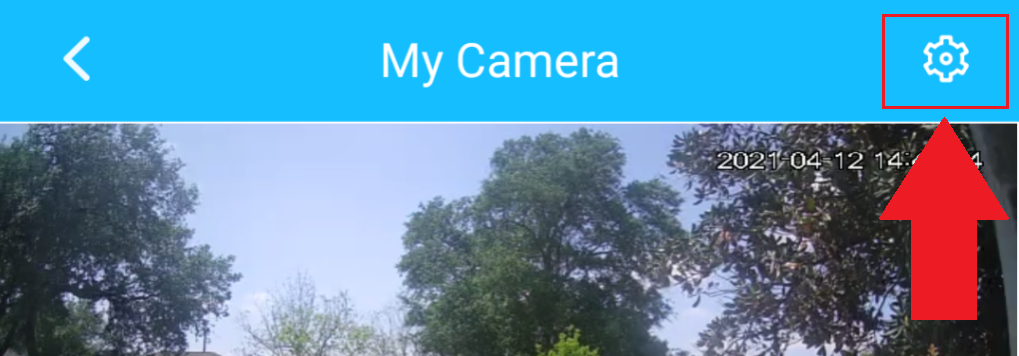
Step 2: Tap the settings icon.
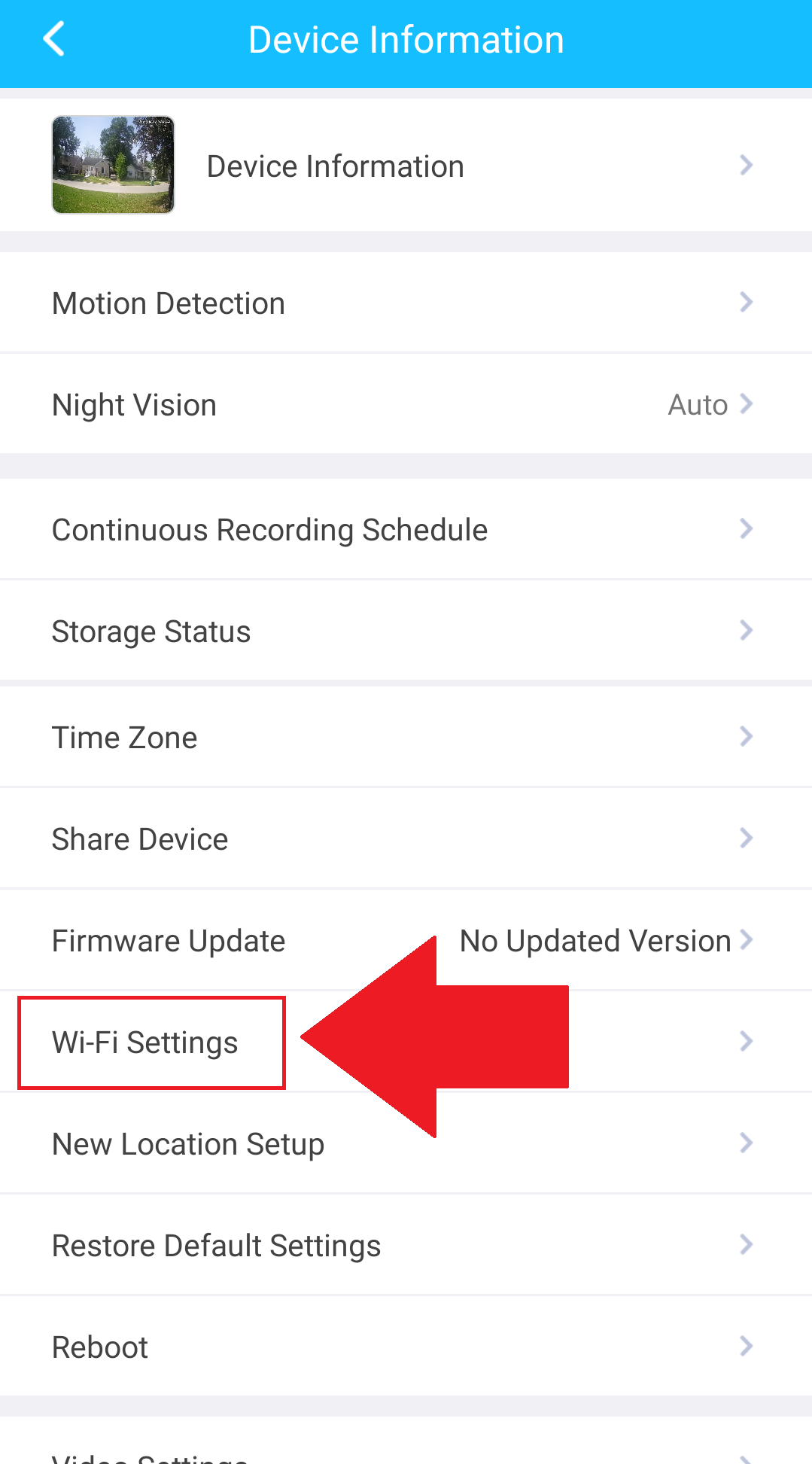
Step 3: Tap on Wi-Fi Settings.
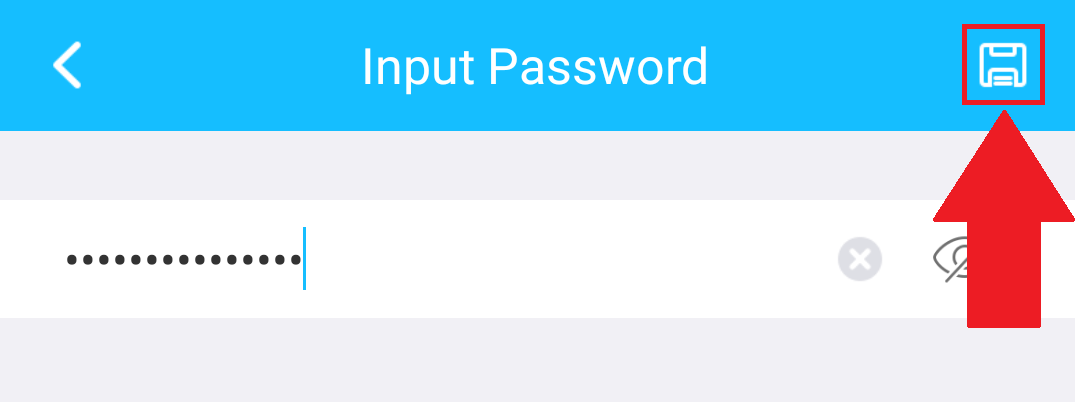
Step 4: Select your Wi-Fi network from the network list and input the Wi-Fi password for your network into the interface. Tap the save icon.
Note: If the device is registering as offline, the device may need to be set up again using the Wi-Fi setup method. To do this, select the offline device from the Devices menu and tap on the (  ) settings icon. Tap Delete Device to remove the device from your account and perform a Factory Reset
Tap Add Device, and select the Wi-Fi setup option. For more details on Wi-Fi setup, click here.
Comments
Please sign in to leave a comment.